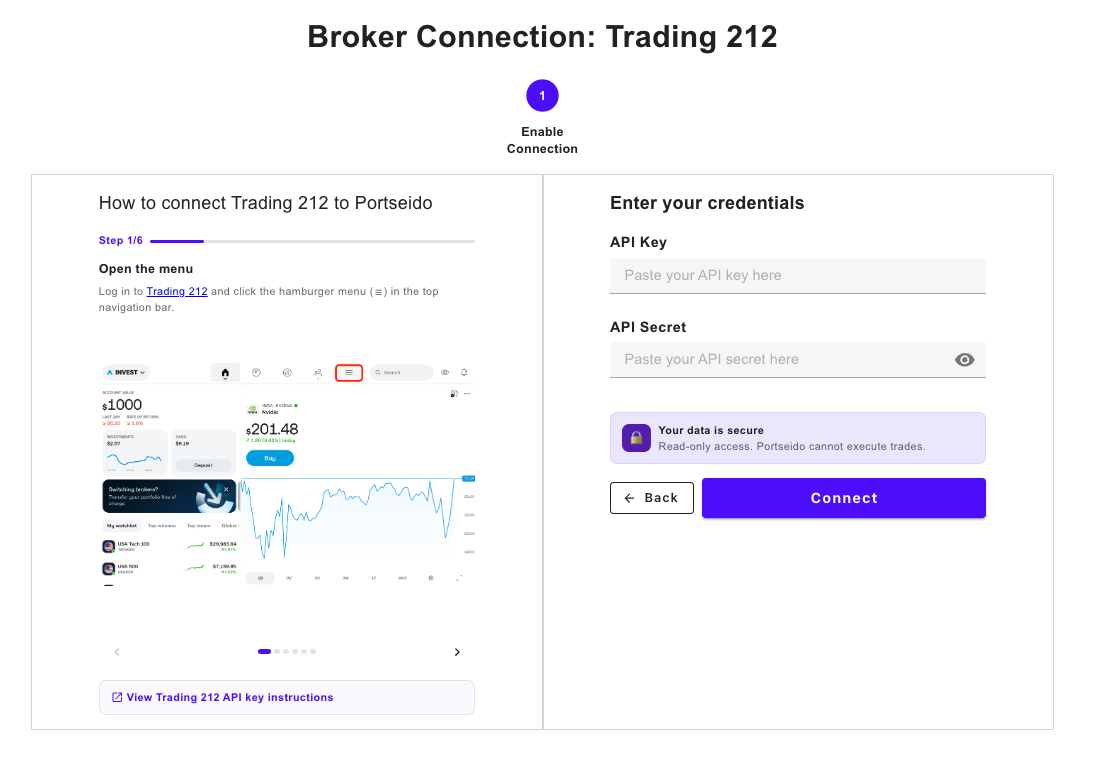
How to connect Trading 212 to Portseido
In this article, we provide a step-by-step guide on how to connect your Trading 212 account to Portseido via broker connection.
Connecting Trading 212 only takes one step — generate an API key inside Trading 212 and paste it into Portseido. Once connected, both your historical and ongoing trade data will sync automatically; no manual file upload is required.
Generate your Trading 212 API key
-
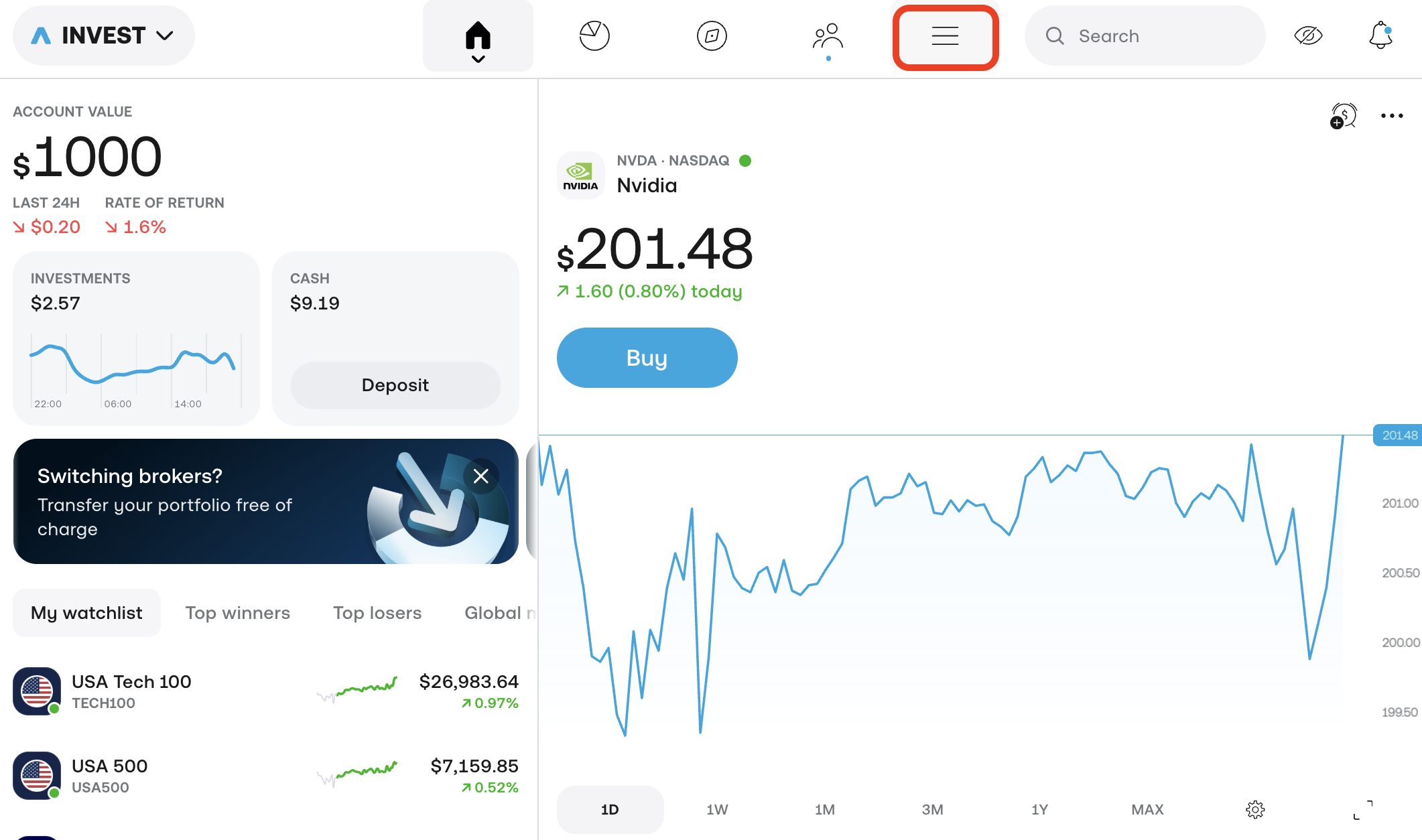
Open the menu — Log in to Trading 212 and click the hamburger menu (☰) in the top navigation bar.
-
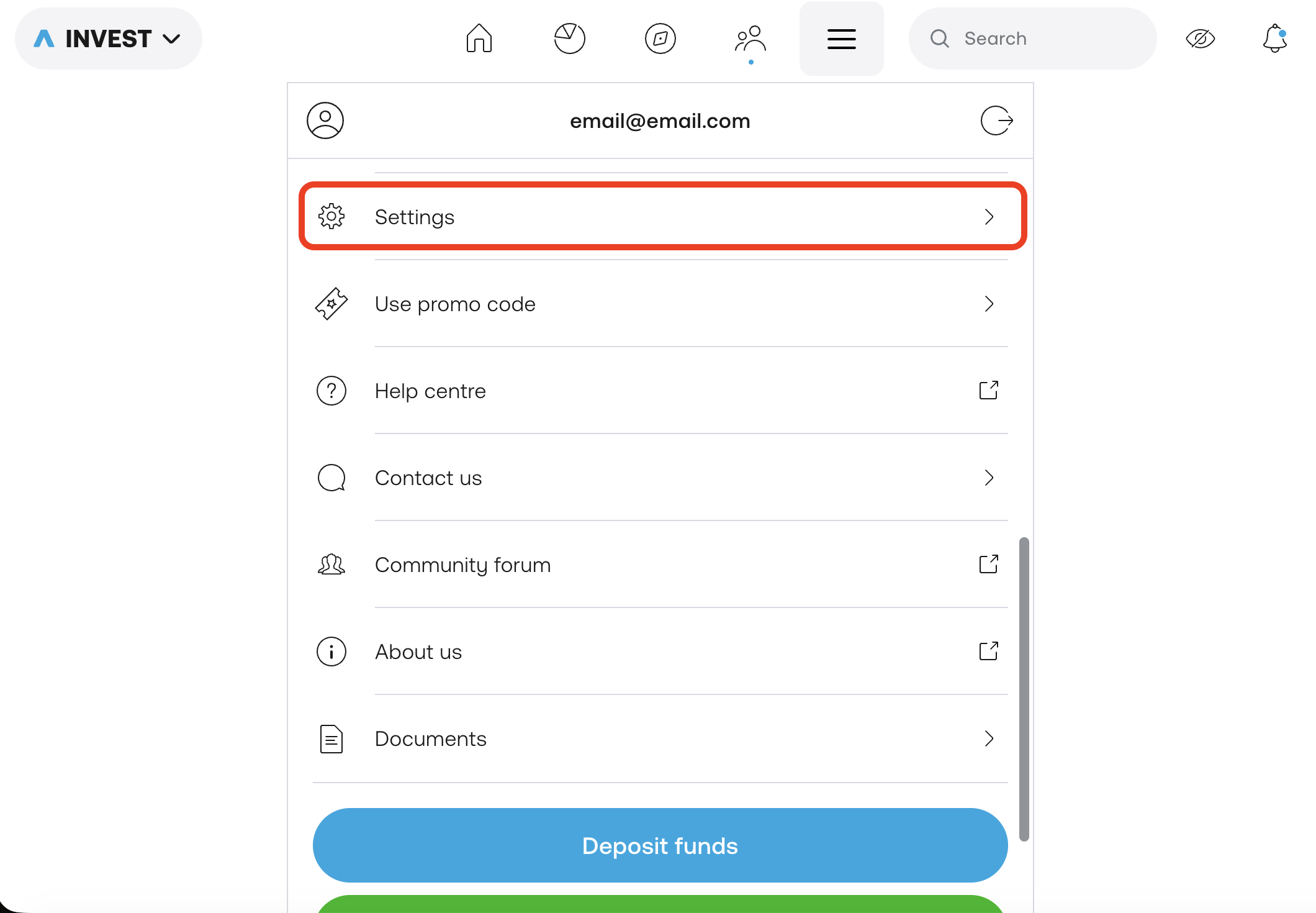
Go to Settings — Select Settings from the dropdown menu.
-
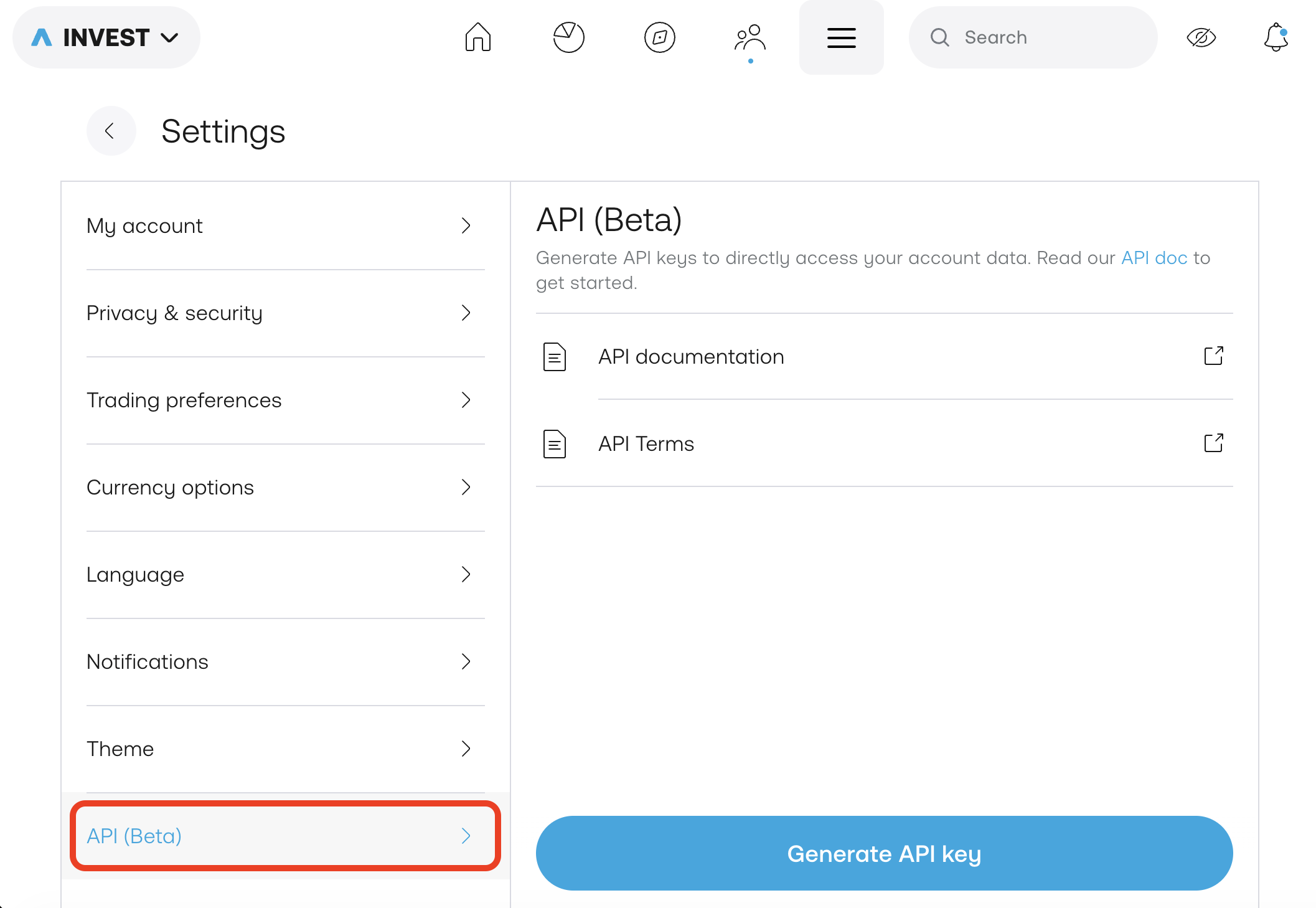
Open API (Beta) — In the Settings sidebar, click API (Beta), then click Generate API key.
-
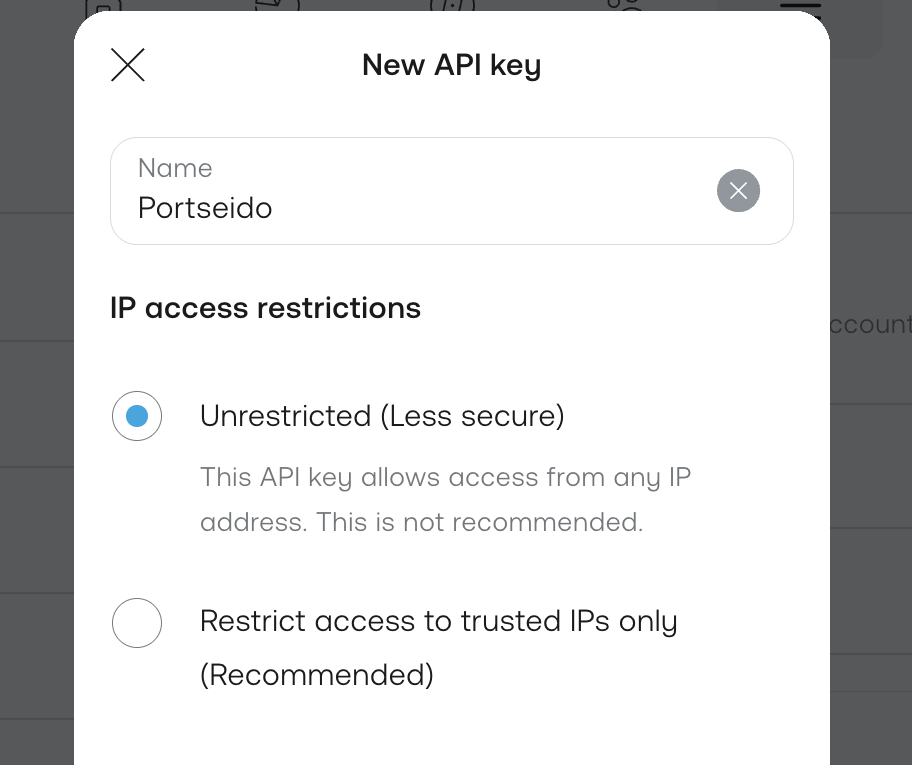
Name the key — Enter a name (e.g.
Portseido) and select Unrestricted IP access.
-
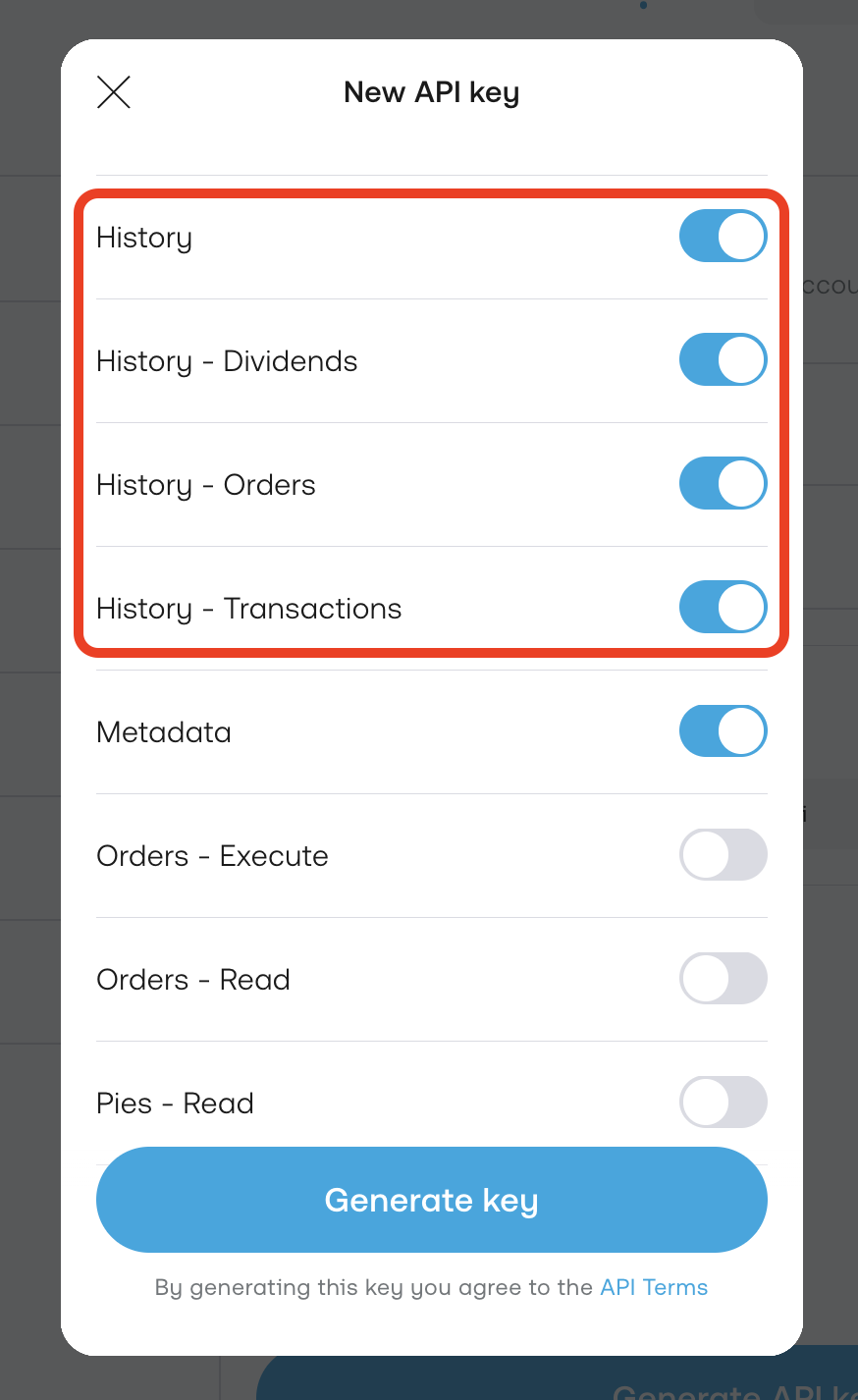
Enable History permissions — Turn on all History permissions, then click Generate key.
-
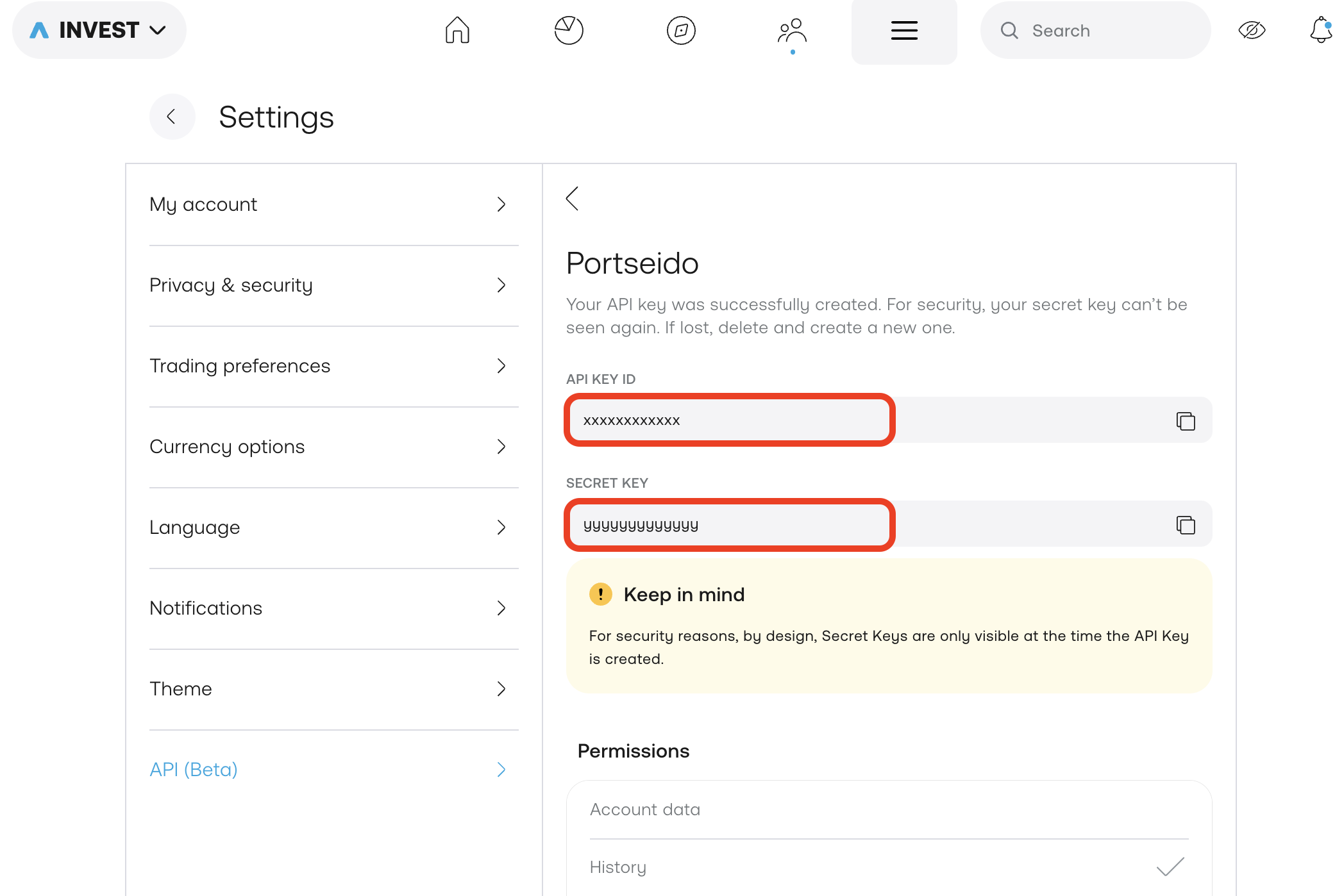
Copy the keys — Copy both the API Key ID and the Secret Key immediately. The Secret Key is only shown once at creation and cannot be retrieved later. Make sure you copy it before leaving the page — if you lose it, you will need to delete the key and create a new one.
-
Paste keys into Portseido — Paste both the API Key ID and the Secret Key into Portseido.